 AI Host Assistant
Docs · Guide 14 of 14
Before every panel · the extension’s options page
Account and settings
Your account, your key and your language, before you use anything. A free Google sign-in, a notice of what is read and what goes to the AI before it happens, and the options page: your OpenAI key, your language and the background reading.
- Where
- Over Airbnb, when you open a panel: the sign-in gate and the data notice. Everything else is on the extension’s options page.
- What it reads
- From Google, only your email and your basic profile. Nothing from your Airbnb; what each tool reads is in its own guide.
- What it costs
- Signing in is free, and right now there is no message limit. You pay for the AI yourself, directly to OpenAI, with your own key; “Test connection” is one short call with it.
- What it changes on Airbnb
- Nothing.
The problem
These tools read your Airbnb account, and some of them write with artificial intelligence. Before you use them, it is only fair to know four things: who you are to the extension, who pays for the AI, what gets read and what gets sent, and what language you see it in.
Where to find it
There are three pieces. A gate: if you have not signed in, every panel you try to open asks you to sign in with Google. A data notice, which tells you what gets read and what goes to the AI before it happens. Both come up on Airbnb, when you open a panel. And the options page, where you add your OpenAI key, choose the language and decide whether your listings are re-read in the background.
You reach the options page with one click on the extension’s icon when you are not on an Airbnb page with a video guide (there, the click opens the guides), by right-clicking the icon and choosing “Options”, or from Chrome’s extensions page. When your key is missing, the AI tools offer an “Open options” button too.
The gate
Signed out, everything stays where it is. But click a button, say “Days of the week”, and instead of its panel you get “Sign in to continue”, right under the button. A single button, “Continue with Google”, and a note: it is free. Creating your account and signing in are the same step.
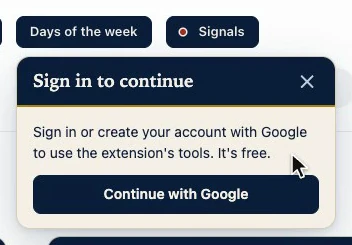
The button is navy, not gold: in this extension gold means a call that costs something, and signing in costs nothing. There is only ever one gate: click another tool and it moves over there. Escape, the ✕ or a click elsewhere closes it.
Signing in with Google
“Continue with Google” opens Google’s window so you can pick your account. The extension only asks for your email and your basic profile. With that, our server keeps a short profile: your email and your name, the extension’s language and version, when you signed up, when you last signed in and last used it, and your plan. Nothing from Airbnb.
As soon as you are signed in, the gate closes on its own and, in most tools, what you had clicked opens.
Before you start: the data notice
Being signed in is not the same as being told. Until you accept it on this computer, every tool that can send something to the AI shows “Before you start” first. In the video, it is Signals.
“Data processing” lists what the extension reads from your Airbnb: your conversations, reservation details, guest profiles and listing content. It sends OpenAI what each tool needs, and that content is processed in real time and not stored on our servers. It also says that once you read a listing in Signals, that listing’s performance figures are re-read in the background once a day, and that you can turn that off in the options.
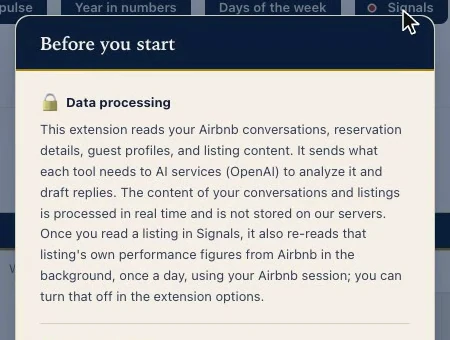
Then the “AI disclaimer”: the AI can make mistakes, and you are the one who reviews every message before sending it. Below, “Read our Privacy Policy” opens the full policy.
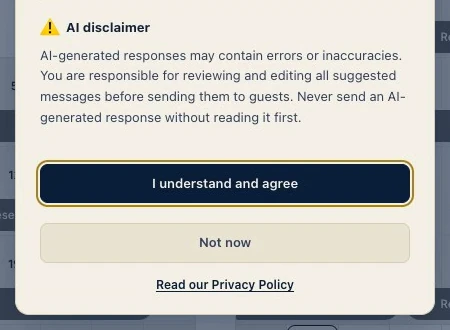
“Not now” or “I understand and agree”
“Not now” does nothing: the tool does not open, and next time the notice asks again. Escape, or a click outside the notice, counts the same. “I understand and agree” opens the tool, and is remembered on this computer.
Only the tools that can send something to the AI ask for it: the Reply drafter, Guest screening, the Hospitality audit and Listing signals. The ones that only read your Airbnb, like each Month insight, Year in numbers or the Market pulse, only ask you to be signed in.
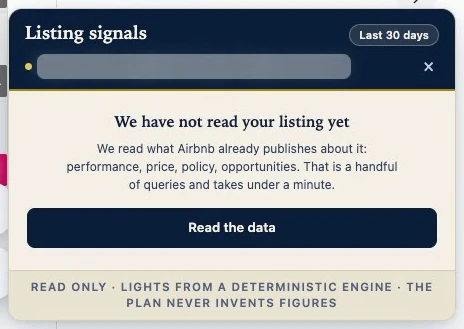
And look: Signals opens without having read your listing. It will not, until you click “Read the data”.
Your account, on the options page
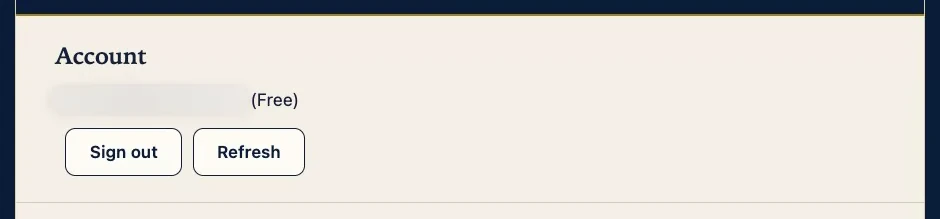
At the top of the options page, “Account”: the email you signed in with, marked “(Free)”, and two buttons. “Sign out”, and “Refresh”, which asks our server for your account’s status again.
Your OpenAI key
You pay for the artificial intelligence yourself, directly to OpenAI, with your own key. If you do not have one yet, “Setup required” walks you through four steps: create an OpenAI account, add a payment method, because OpenAI charges per use, generate a new API key, and paste it here. The first three steps link to OpenAI.
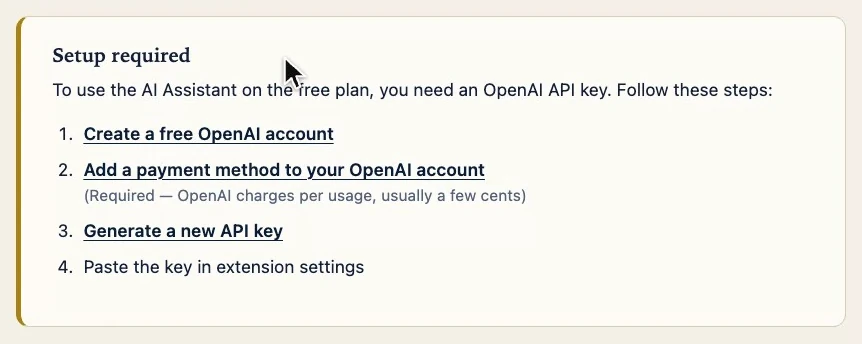
Two checks catch mistakes first. “Test connection” with no key saved asks you to save one: “Save your API key first”. And if what you paste does not start with “sk-”, as OpenAI keys do, “Save settings” does not save it and tells you so. Paste your key, click “Save settings”, and the page says “✓ Settings saved”. With a key saved, the guide disappears: it is no longer needed.
Testing the connection
“Test connection” sends a short hello to OpenAI with the key and the model you saved. If OpenAI answers, you see it at the top of the page.
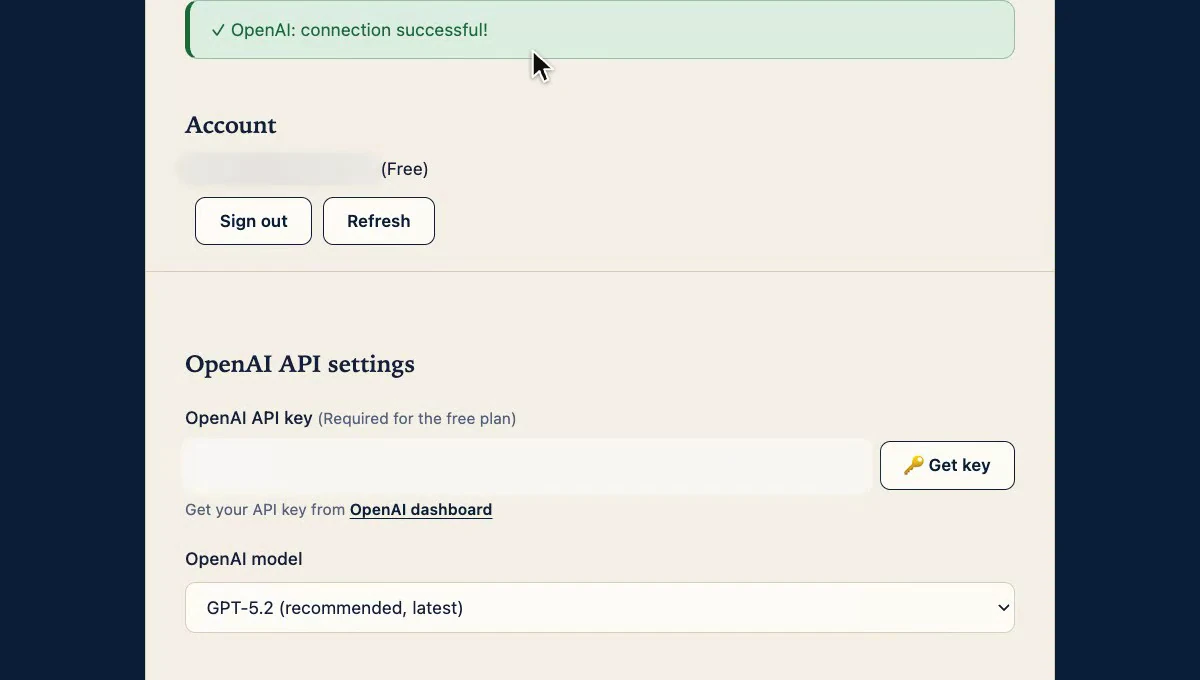
The key stays in your Chrome profile, and it goes from your browser straight to OpenAI, without passing through our servers. The test needs you to be signed in: signed out, it fails with “API connection failed. Please check your key.”, even when the key is fine.
Model and language
Below the key, “OpenAI model”: by default GPT-5.2, the recommended one. The list also has faster, cheaper versions, and two from the previous generation. The tools that use the AI call it with the model you save here.
Then “Extension UI language”. It is the extension’s language, not Airbnb’s: you can have Airbnb in one language and the tools in another. At first it takes your browser’s language. If you change it, the choice is saved right away and this page translates instantly; only your account line and its buttons wait until you reload the page. A panel already open on Airbnb may keep the previous language until you open it again.
Daily background reading
The “Daily background reading” box comes checked, and it controls both background reads, once a day: the figures of the listings you already read in Signals, to show you a trend, and the calendar of the ones whose golden window you measured. Both run only while you are signed in; the Signals one also needs the notice accepted.

If you uncheck it, nothing is read in the background on this computer. The box saves itself as soon as you click it.
Video guides
Below, “Video guides”, checked by default. On Airbnb pages, a small popup in the bottom-right corner offers the video of each tool on screen, and nothing loads from YouTube until you press play. To see a page’s dismissed guides again, press “▶ Guides”, which stays in that corner once they are all dismissed, or the extension’s icon; the “▶ Video” in each tool’s panel also opens its guide.
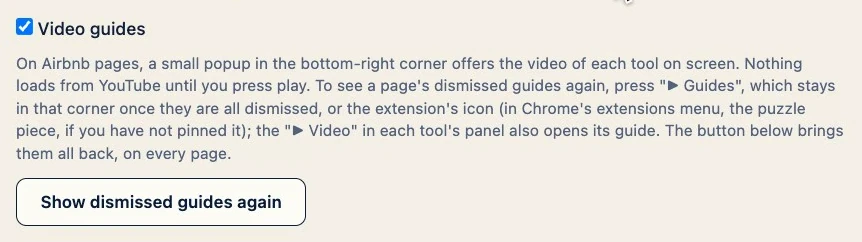
“Show dismissed guides again” brings them all back, on every page. Uncheck the box and the popup no longer appears.
Signing out
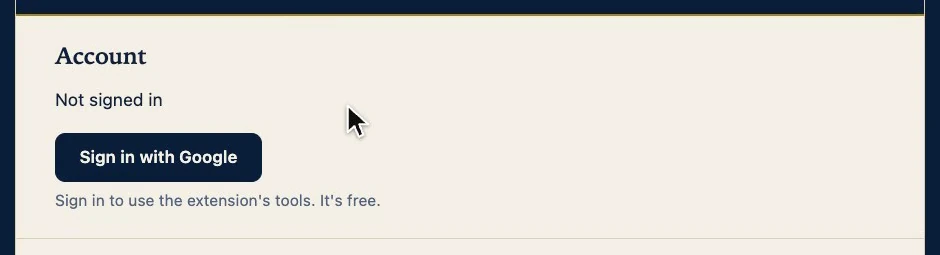
If you want to leave, “Sign out”, in “Account”. The next panel you try to open, in any tab, shows you the gate again. Your key, your language and your acceptance of the notice stay where they were. The account then says “Not signed in”, with a “Sign in with Google” button.
Why it works
Every panel you open goes through the same gate: one rule, instead of some asking you to sign in and others not. Signing in is free and, right now, there is no message limit: you pay for the AI yourself, to OpenAI, with no middleman. And what gets sent to the AI is told to you before, not after.
Its limits
- Your acceptance of the notice cannot be withdrawn from any screen, and “Not now” is not remembered.
- Your session belongs to this computer: on another one, you have to sign in again.
- The extension does not work in incognito windows.
- The gate stands in front of every panel that opens with a click. What the extension paints on your calendar by itself, like the net labels under each price, works signed out.