 AI Host Assistant
Docs · Guide 12 of 14
Multicalendar, year view · “Signals”
Listing signals
Your listing at a glance: what works, what does not, and where to start. It brings together the figures Airbnb keeps on separate pages, gives each a light from fixed rules, names your main problem and, if you ask, writes a plan.
- Where
- Your Airbnb multicalendar, in the year view: the “Signals” button, always the last one in the row with the year.
- What it reads
- When you press “Read the data”: about twelve queries to Airbnb with your session, for performance, reviews, Superhost, pricing, opportunities, beds, policy and cases. An AI review or the plan also reads, at that moment, the photos and texts it needs.
- What it costs
- Reading uses no AI. The AI review of your photos or your text, and the plan, are one AI call each with your OpenAI key; the plan asks once more if the first answer cannot be used.
- What it changes on Airbnb
- Nothing. It only reads.
The problem
Airbnb knows a lot about your listing, but it tells you in bits and pieces: performance on one page, response rate and cancellations on the Superhost page, cases in the Resolution Center, beds and policy in the listing editor. Your funnel rates come without saying which percentage is good, and no page tells you which one to look at first. Signals brings those figures into one panel, gives each one a light with fixed rules, names your main problem and, if you want, writes you a plan.
Where to find it
Open your multicalendar on Airbnb in the year view; the button does not exist in the month view. “Signals” is always the last button in the row with the year, and it reads the listing whose calendar you have open. To see another listing, open its calendar.

The dot on the button tells you something before you open it: red if you have not read anything yet, amber if your last reading is from another day, green if it is from today.
If you are not signed in, or have not accepted the data notice yet, the button asks for that first. The AI parts also need your OpenAI key in the extension’s options. Account and settings covers all three.
Reading is a button
Opening the panel does not read your listing’s figures: it only looks at what you have saved. The first time there is nothing, and it tells you so, instead of showing a row of gray lights that would look like a listing with no data.
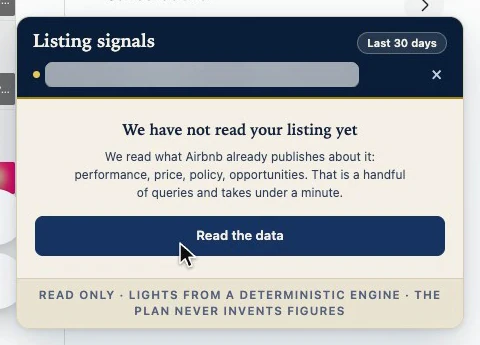
“Read the data” makes about twelve queries to Airbnb with your session. They go one at a time and spaced out, on purpose, so as not to overload your account; the panel says it takes under a minute. Then the header says when it was read, and “Refresh” reads everything again whenever you want. A reading that comes back mostly empty never replaces a good one, and the panel says so.
The verdict
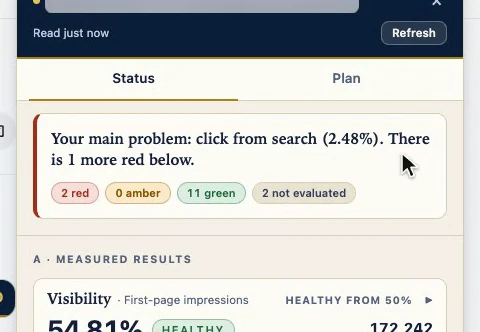
The “Status” tab starts with Booking pace, which has its own guide. Below it, a single sentence. When there are reds, it names your main problem, with its figure, and says whether there are more reds below. It is not written by an AI: it comes from fixed rules, and with the same reading it always says the same thing. Then four counters: red, amber, green and not evaluated. Your photos and your text always count as not evaluated, because they are not measured with a number; any other gray light joins them, such as a figure that could not be read.
Your funnel, last 30 days
Next, the funnel, in the order it happens. Visibility: out of every 100 times you appear in a search, how many are on the first page. Attraction: out of every 100 people who see you in the list, how many click. Closing: out of every 100 who open your page, how many book.
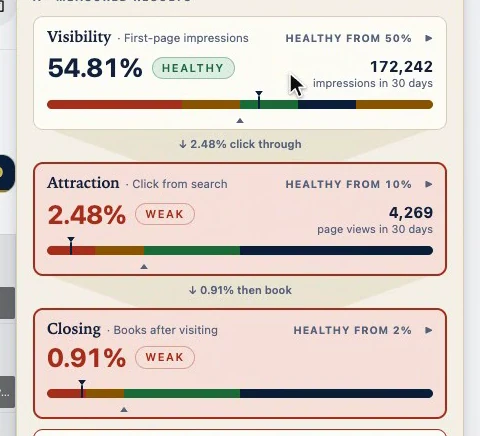
Each stage has its figure, a bar with where you fall and where healthy starts and, in the first two, the count behind it: impressions and page views. Closing has no count, on purpose: Airbnb does not publish that number. A red frame marks where it breaks. With fewer than 100 impressions in 30 days, the three stages stay gray, because with so few, the percentages jump.
Open a stage
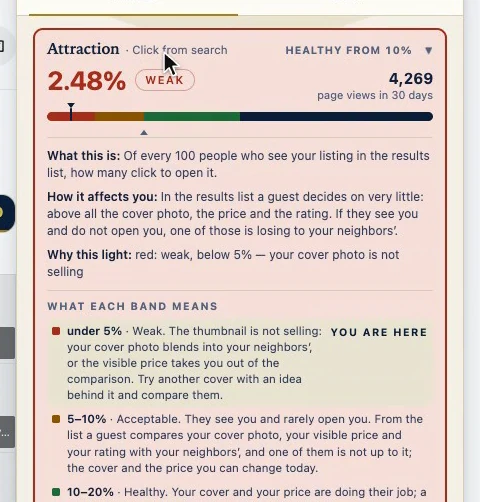
Each stage opens: “What this is:”, “How it affects you:” and “Why this light:”, with the exact threshold. Below, “What each band means” explains each band of the bar and marks yours.
Overall conversion and the notes
At the bottom, Overall conversion, from impression to booking. Even in red, it does not score: it comes, roughly, from multiplying the click by the booking, and it would count the same problem twice.
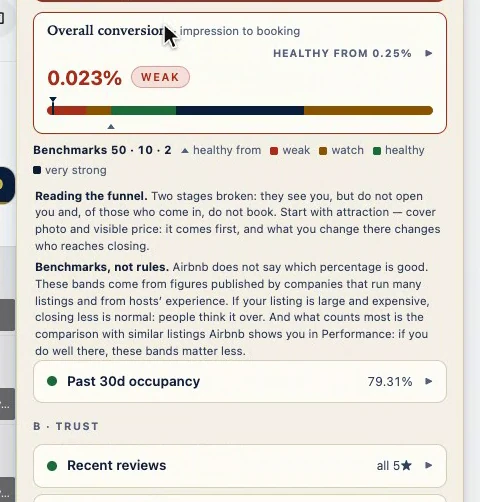
“Reading the funnel.” applies a simple rule: do not touch what works while another stage is broken, and if several are broken, start with the first. “Benchmarks, not rules.” is the honest warning: Airbnb does not say which percentage is good. If your listing is large and expensive, closing less is normal, and what counts most is how Airbnb compares you with similar listings in Performance.
Trust, value and the amplifier
Below the funnel is what usually explains it. Trust: recent reviews, cancellations, cases and response rate; the last three are measured across your whole account, and the row says so. Value: your price against the one Airbnb suggests in your pricing settings, your beds, your cleaning fee and the recommendations of Airbnb you have not taken. The weight of your cleaning fee in a typical stay of yours cannot be looked up on Airbnb, so its row shows the math, with your average price and your average nights. And some rules depend on others: half or more of your places being sofa beds, bunks or air mattresses only counts if your price is not green.
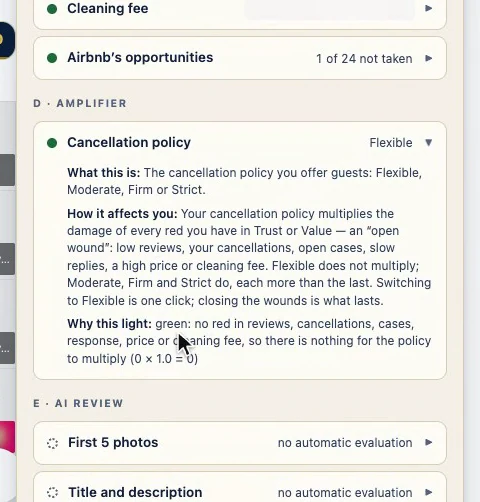
The cancellation policy does not score on its own: it multiplies the reds in reviews, cancellations, cases, response, price or cleaning fee. Flexible does not multiply; Moderate, Firm and Strict do, each more than the last. With no reds, there is nothing to multiply.
Photos and text: an opinion, not a light
“First 5 photos” and “Title and description” stay gray on purpose. If you want an opinion, “Review with AI” asks for one. For the photos, it sends the first five, in the order a guest sees them, and your listing’s figures. For the text, your title, your description and your house rules.
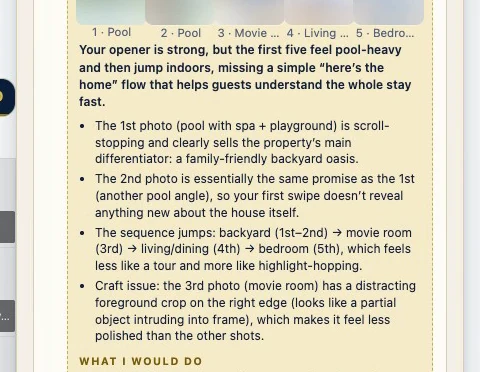
The opinion comes next to those five photos, numbered, so you can check it against them, with what it found and “What I would do”. It suggests a color, but it does not count toward the verdict or the priorities. It is saved for this listing until you ask for another. To rewrite your texts, use the Hospitality audit.
The plan
In the “Plan” tab, “Generate plan with AI” turns your reds and ambers into what to do. What goes in, and in what order, is not decided by the AI: one card for each red and each amber, in the rules’ order of priority, and what each costs, free, action or investment, comes from a fixed list. The AI gets your fifteen factors, your text and, when the click or the closing is in the plan, your first photos. It writes a reading of the whole listing and the wording of each card: its title, why, steps and check.
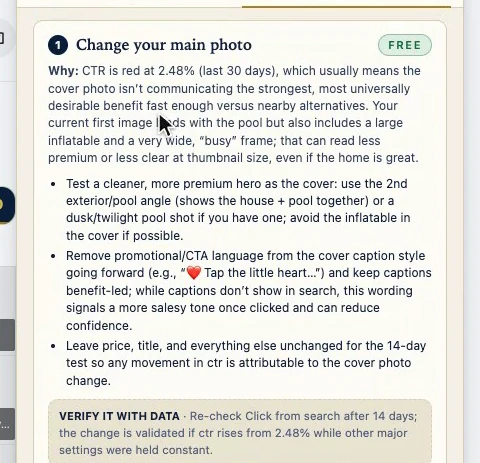
Every card ends with “VERIFY IT WITH DATA”: which figure, and how soon, will tell you whether it worked. An answer that adds, drops or reorders cards, or leaves out that check, is discarded and another is requested. If that fails too, or without AI, you get a base plan with the same cards.
Saved, and read once a day
Close the panel and the dot turns green: today’s reading stays saved for this listing, in this browser. With “Daily background reading” on in the options, the listings you have read are read again on their own, once a day. Response rate and cancellations cannot be read in the background, so they carry over from your last reading in the panel.
Why it works
Every light comes from a rule you can read by opening its row, over figures read from Airbnb with your session. What could not be read stays gray and says so; it is never assumed to be fine. And the AI never touches a color.
Its limits
- The funnel bands are benchmarks, not Airbnb rules.
- Not every row looks at 30 days: reviews are your last 10 from the past year, cases the last 90 days, cancellations and response rate the period Airbnb assesses for Superhost.
- It is a snapshot of the day you read. Read again on another day within two weeks, and the rows whose figure changed tell you from how much to how much.
- It does not compare you with similar listings; that is Market pulse.
- The AI review and the plan send your photos, your text and your figures to OpenAI.