 AI Host Assistant
Docs · Guide 1 of 14
Inbox · “Draft a reply”
Reply drafter
The reply, with everything you already know, as a draft. A button in Airbnb’s message box gathers the thread, the reservation and your listing, and leaves a reply in the box, in the tone and language you choose, without sending it.
- Where
- Your Airbnb inbox, in the message box of the open thread: the lightning bolt next to quick replies, called “Draft a reply”.
- What it reads
- The latest messages the page has loaded, the reservation panel, your listing’s texts, house rules and checkout time, whatever you write as extra context, and your guest screening if you already opened it.
- What it costs
- At least one AI call with your OpenAI key per draft, and more if it has to be rewritten.
- What it changes on Airbnb
- It writes the draft into the message box and never sends it. Sending is up to you.
The problem
A guest writes to you. To answer well, you go back over the conversation, check the dates of their reservation and remember what your listing says. Then you write something that does not sound like a template, does not promise anything out of your hands, and does not ask them again what they already told you. Message after message, that takes time.
Where to find it
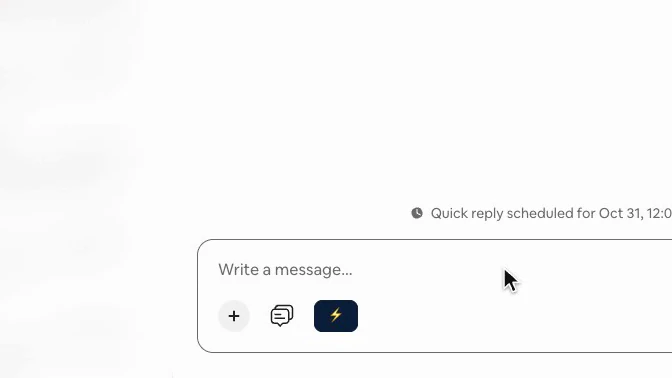
Open a conversation in your inbox. In Airbnb’s message box, right after the quick replies button, the extension adds a navy lightning bolt called “Draft a reply”. It only shows up there, and it never sends anything on its own.
The first time, it asks you to sign in with Google and to accept a notice about your data, because the conversation goes to OpenAI. Account and settings covers both, and where your OpenAI key goes.
Three choices and one button
The bolt opens a small window just above it: “Draft a reply”, using everything we already know about this conversation. It asks for three things only: the language, the tone, and, if you want, something you know that is not in the thread. It gathers the rest on its own. Under the gold button it says it plainly: it stays a draft, nothing is sent.
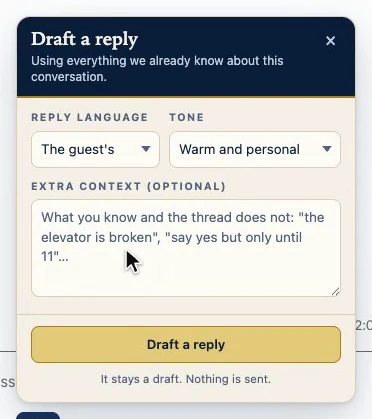
The tones are not adjectives, they are situations, and each carries its own instruction to the AI:
- Warm and personal, the default: glad to help, neither effusive nor formal.
- Short and direct: two or three sentences. It answers and stops.
- Clear instructions: numbers, times and steps stated plainly.
- Something went wrong: it first acknowledges what happened, then says what you are going to do.
- You have to say no: it says so early, gives the real reason, and offers what you can do.
The language is “The guest's” by default: the AI is asked to answer in the language the guest writes in and, if they switched, in the one they used last.
The first draft, in the box and not sent
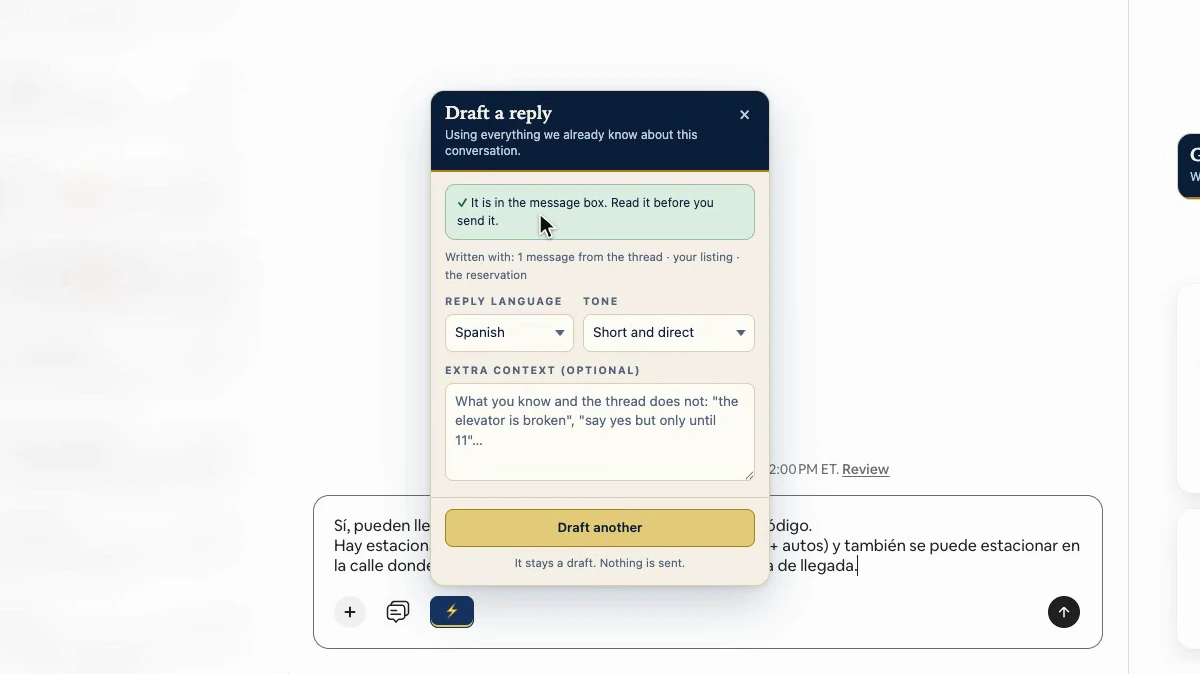
Click “Draft a reply” and it reads first (“Reading the thread and your listing…”), then writes (“Writing…”). The draft goes straight into Airbnb’s message box, where you would type. Nothing has been sent: the send button is still there, waiting for you. The window reminds you: “It is in the message box. Read it before you send it.”
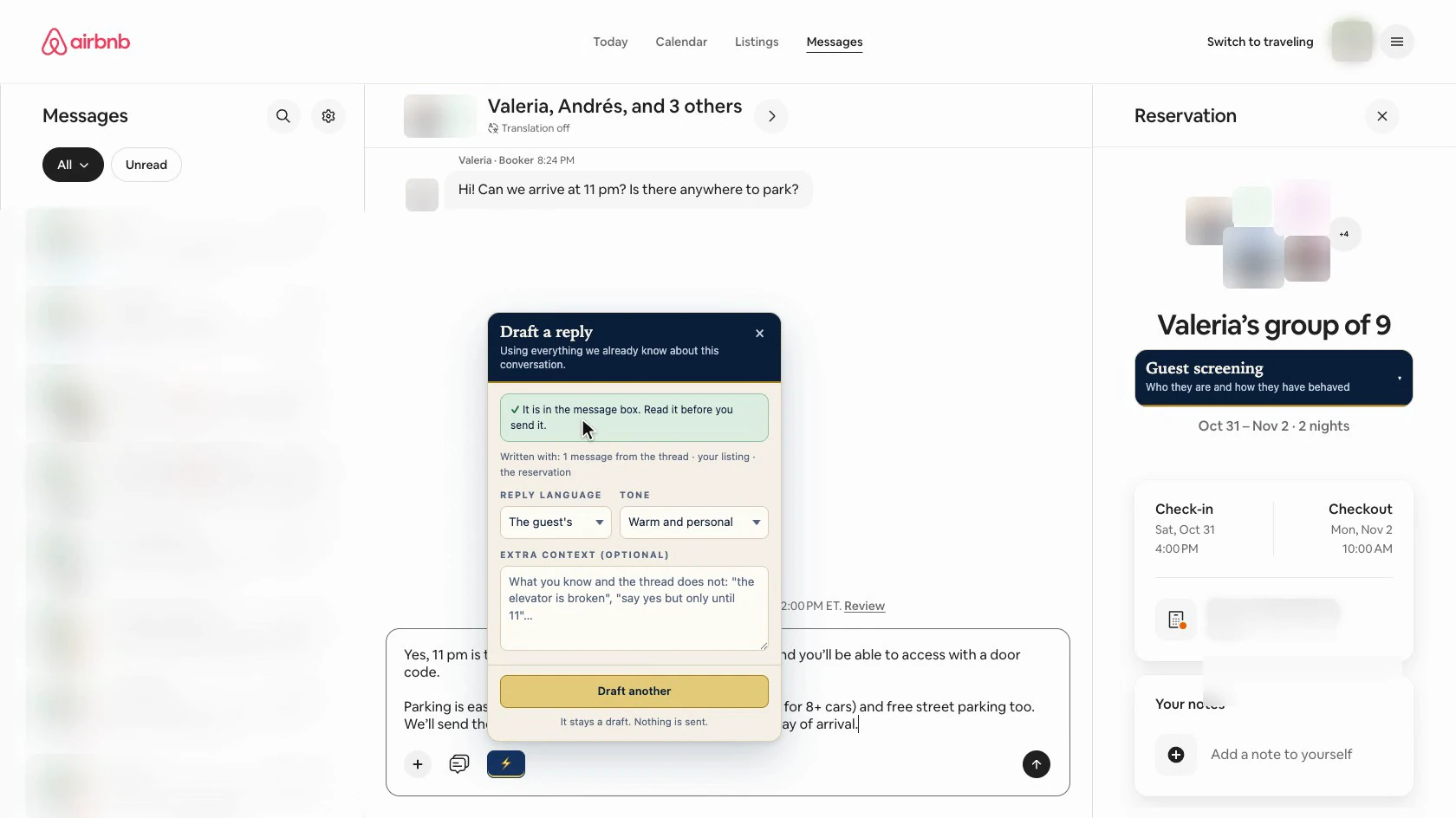
Close the window and the draft is still in the box. You read it, change it if needed, and send it yourself.
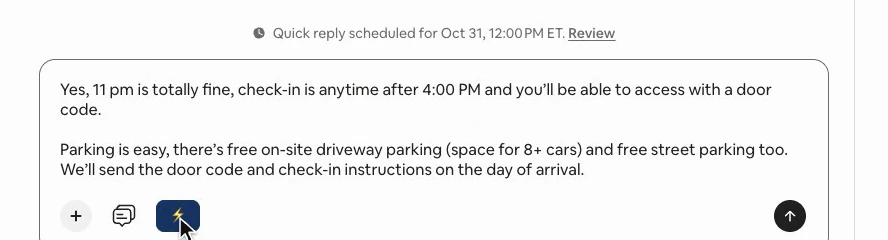
If the box already had text of yours, it does not touch it without asking: “Add it below” or “Replace it”. And before you choose, it warns you that what gets replaced does not come back with Undo. When the box holds only its own last draft, “Draft another” swaps it without asking.
What it was written with
Under the green notice, in small print, the window says what the draft was written with. It is going out under your name: you have a right to know what it looked at.
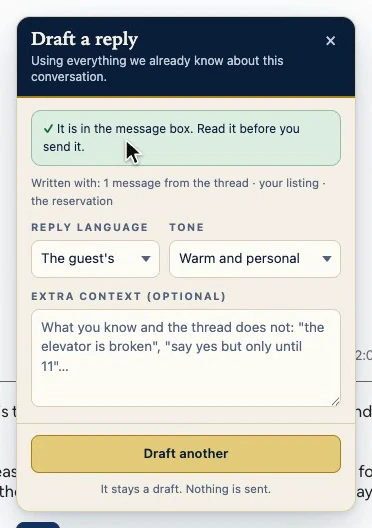
- The messages from the thread: the latest ones the page has loaded, up to forty.
- The reservation: what Airbnb shows in the panel on the right, its dates and how many are coming.
- Your listing: its texts, its house rules and its checkout time, read once and kept for half an hour, the same saved reading the Hospitality audit uses. If it cannot tell for sure which listing the reservation is for, it writes without it, and “Written with:” does not say “your listing”.
- The guest review, only if you had already opened the guest screening for this guest. It never reads it on its own, and only its figures, whether the guest is verified and up to three reminders reach the AI, never what reviews or the profile say.
The thread and the reservation are already on your screen, so reading them asks Airbnb for nothing.
Extra context
In “Extra context (optional)” you write what you know and the thread does not. What you write here outranks everything else, even your listing.
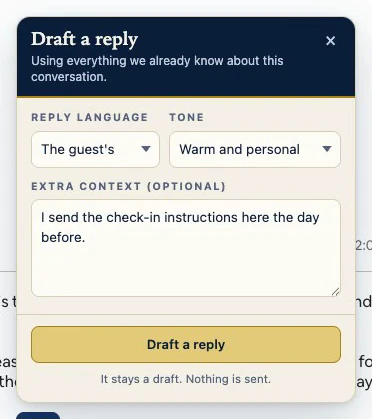
Close the window to read something further up, and your text is not lost. It is kept for this thread, and only this one, until you reload the page.
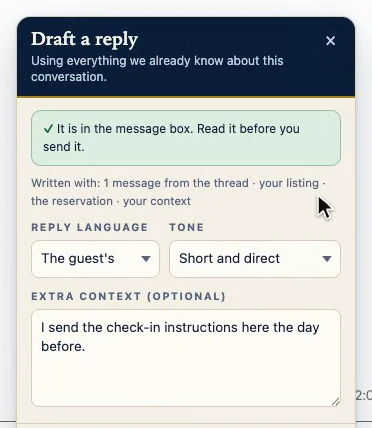
Ask for another, here with the tone on “Short and direct”, and the new draft replaces the previous one in the box. The “Written with:” line now also says “your context”.
When a fact is missing
If it needs a fact it does not have, it does not make it up. It writes the sentence with a gap in double brackets, inside the message, and lists it under “Fill these in before sending”. A gap you can see is better than a fact that looks right and is not.
If the draft contains a phone number, an email, a link outside Airbnb or an app like WhatsApp, a “Contact details” warning appears: Airbnb blocks those before a booking is confirmed. It only warns; it deletes nothing.
What it remembers
Open it again and it remembers the language and the tone you chose, in this browser. The earlier context is gone: it was used and then forgotten, so it does not slip into another reply.
You can also set the language yourself. There are nine options: the guest’s, Spanish, English, French, Italian, German, Portuguese, Dutch and Catalan.
Why it works
In one click it brings together what you would go looking for in three places. And it is built not to sound like a template: the AI is asked to answer what is still pending in the first sentence, not to bring back what is already settled, not to ask the guest to confirm rules they accepted when they booked, and to ask one question at most.
Then the code checks what comes back. Long dashes are taken out. Contact details raise the warning. And if the draft gives away that you looked into the guest, with phrases like “your reviews” or a piece copied from their screening, it is thrown out and written again.
Its limits
- It only sees what the page has loaded. It does not read your calendar or your prices.
- What “Replace it” removes from the box does not come back with Undo.
- The contact warning sometimes takes a date for a phone number.
- The screening check does not recognize a translated review.
- The list of gaps comes from the AI and is not checked against the brackets in the text. Read the whole draft.
- Each draft is at least one call to your own OpenAI account, and up to three if an attempt is thrown out or fails.
- The AI can be wrong. That is why it proposes, and you decide.